Partsmart 10 Admins can import Import Cost, MSRP and Price for catalogs through the PartSmart import process.
Download the Template
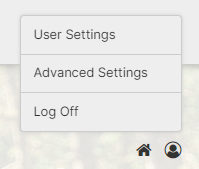
- First click the small person icon on the lower right.

- Select Advanced Settings.

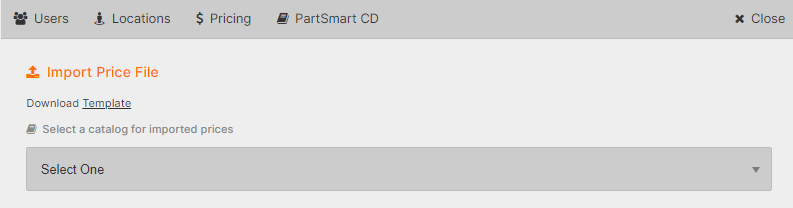
- Click Pricing.
- Click to download template.

Prepare your import file
- Open the template file in notepad. Review the headers, they indicate the data you will need.

- Open your price file in Excel.
- Copy the headers from price.psprice into your price file at the start of the first unused column..

- Look at your price file for the columns you will need: Part Number | Cost | MSRP | Price
- Part Number: In the above example the parts number is column B, Manufacturer Item Number. You should be able to use your parts field to search parts in Partsmart (Column A is not a part number. The extra “SC” characters added to denote the Scag catalog prevent successful searches).
- Cost: Price files often have multiple costs. You may use any cost field (and dealers often choose to hide cost in Partsmart). Here we will use column E, Bracket 2 Dir Cost.
- : You do not need to include cost. If you do not, make sure you still include both pipes. Your row will look like this: 451794||149.82|157.31
- MSRP: Select the manufacturer provided, here column D, List Price.
- Price: uploaded prices will override any partsmart rules. We will discuss how to use excel to update column D, List Price.
- Clean up the columns we’ll be using. .
- Parts Number: parts number field (here column B, Manufacturer Item Number)
- Find and replace all characters that are not numbers or letters (periods, spaces, dashes, underscores, apostrophes, commas or anything else).
- Price, MSRP, Cost:
- Find and replace all characters that are not numbers or decimal points (spaces, dashes, underscores, apostrophes, commas or anything else).
- Select any Price, MRSP and Cost columns. We will format them as currency.
- Right click.
- Select Format Cells.
- Select Currency in the Category field.
- Select None as the symbol.
- Click OK.
- Parts Number: parts number field (here column B, Manufacturer Item Number)
- We will use an excel formula to pull your formatted cells into the column with the header: =TEXTJOIN(“|”,FALSE,B2,E2,D2,ROUND(PRODUCT(D2,1.05),2)) Make sure to replace the cells(B2, E2,D2,D2), with the cells YOU need.
Let’s look at what this formula does.
The import file must have pipe character “|” delimiters. This formula pulls our values into one cell, seperated by pipe characters: =TEXTJOIN(“|”, FALSE,B2,E2,D2,D2)
But often, we will want our price to be different than our MSRP.
We could add 5% and preserve 2 cents digits by multiplying by 1.05 like this: PRODUCT(D2,1.05)
We could add 5 cents and preserve 2 digits, adding 0.05 like this: sum(D2,0.05)
We also need to round any math we do to the right number of cents digits, by wrapping it in a round function: ROUND(PRODUCT(D2,1.05) - We will use the following excel formula: =TEXTJOIN(“|”,FALSE,B2,E2,D2,ROUND(PRODUCT(D2,1.05),2)) to pull all the info we need into one cell.
- Then we can copy this cell to the bottom of our data. Excel will update cells to the correct row. It should look like the below (our column here is J).

- Select Column J and copy the whole column into your price.psprice file. It should look like this.

- Save and close the psprice file. You should be ready to import!
- Then we can copy this cell to the bottom of our data. Excel will update cells to the correct row. It should look like the below (our column here is J).
Import your price file
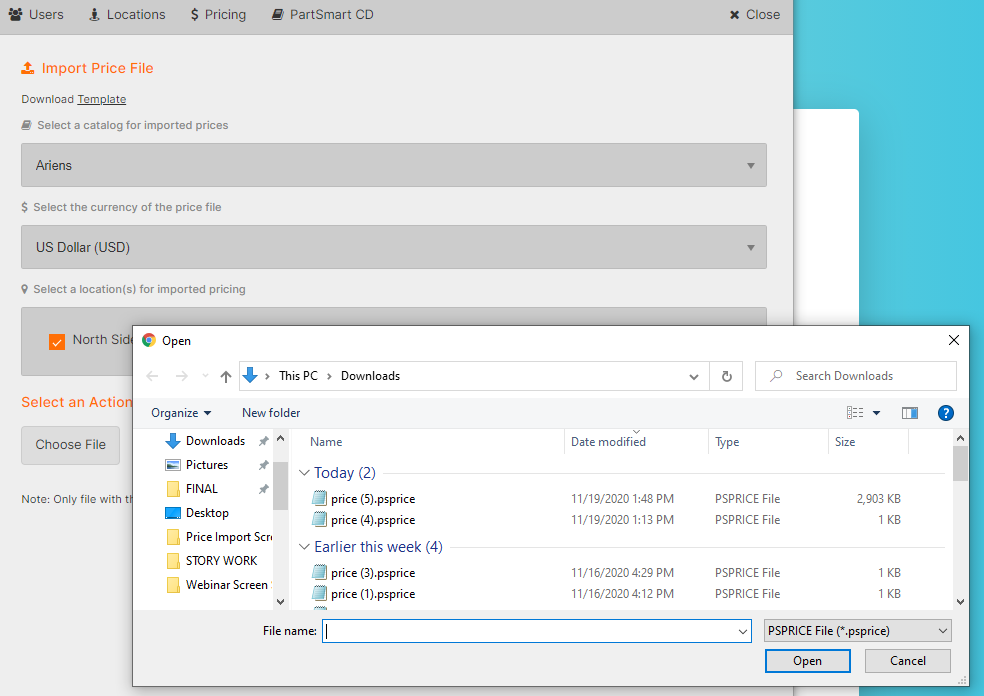
- Go back to the pricing tab in partsmart.net.
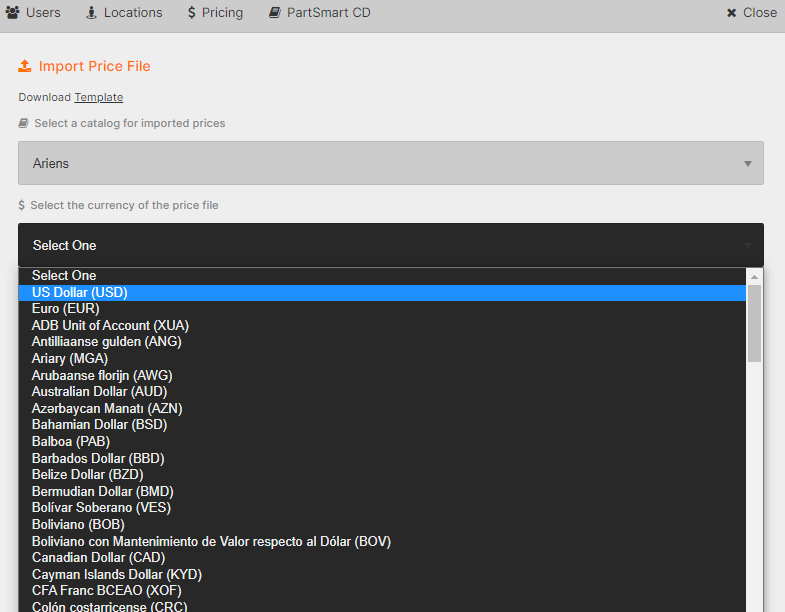
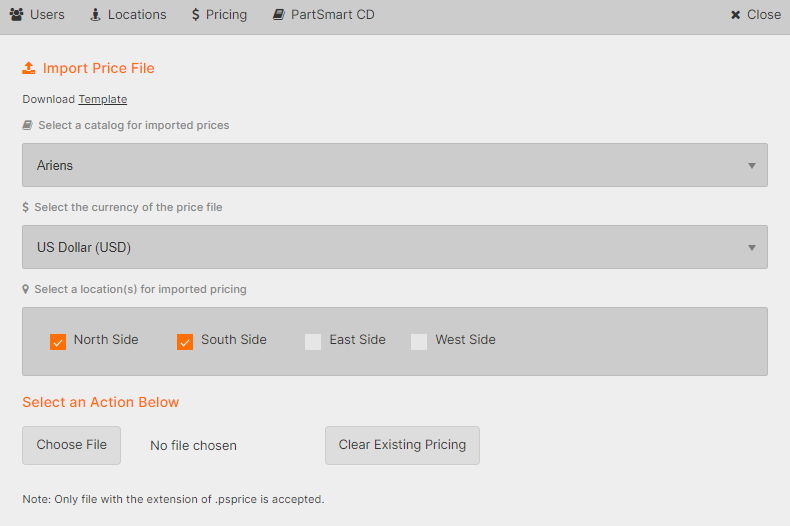
- Select your catalog and your local currency.

- Click Choose File

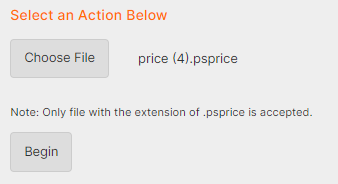
- Find and select your psprice file.

- Click Begin.

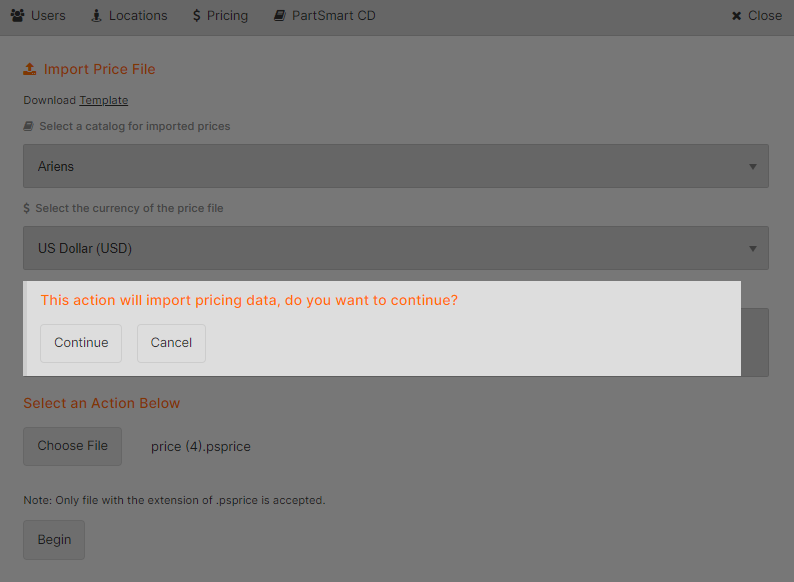
- Confirm you are confident your psprice file has the right price numbers, then select Continue.

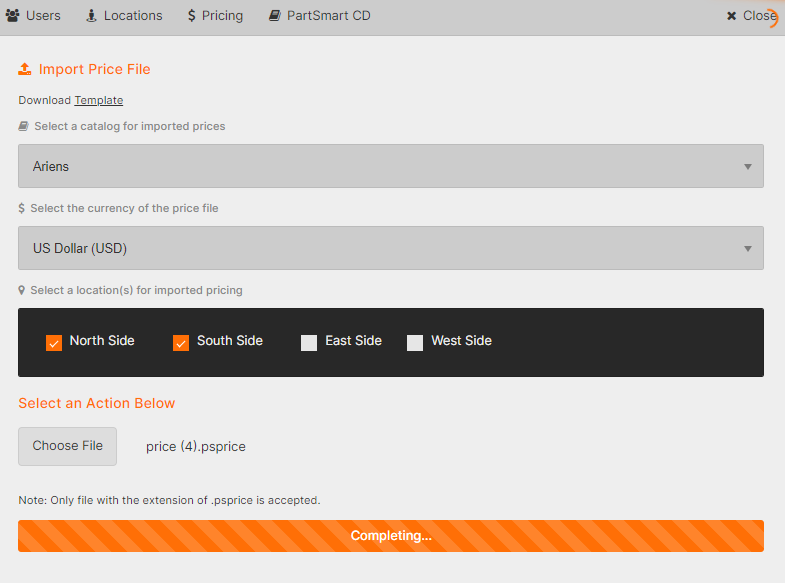
- Watch the upload bar. Note if any errors pop up. They may flash and disappear quickly.

- Check a couple units you expect to change. Make sure to check a few near the bottom of the list as these are the most likely to be affected by errors (like spare quotes and spaces where they don’t belong).
- If parts look good you’ve successfully uploaded your price file!
Why is my psprice file not uploading correctly?
Make sure you aren’t looking at old data
- Clear your browser cache and cookies. Cached partsmart pages may contain old values.
- Web browsers store site content to avoide reloading it on every visit. Try clearing your cache and refreshing the page.
Confirm your price file is formatted correctly.
The two lines below are the contents of a correctly formatted price file. Additional parts for the same manufacturer would be added to following lines:
Part Number|Cost|MSRP|Price
41401200619|12.01|31.99|31.99
Confirm the following:
- All spaces, quotes, apostrophes, and dash marks have been removed from Price, Cost, and MSRP.
- All spaces, periods, quotes, apostrophes, and dash marks have been removed from part numbers
- Your price file contains the expected header here: Part Number|Cost|MSRP|Price
- All money values with a decimal have 2 digits after the decimal. (ie 2.60, not 2.6)
- Your price file is a .psprice file, not a price.psprice.txt file or any other extension. To make sure you are seeing the full file extension in windows click here: https://support.microsoft.com/en-us/windows/common-file-name-extensions-in-windows-da4a4430-8e76-89c5-59f7-1cdbbc75cb01.
- You have exactly 3 Pipe “|” symbols.
- There is no pipe after price. If your row looks like this it will not import: 451794|104.87|149.82|157.31|
If some but not all prices updated
- Confirm the correctness of lines in your Price Import File containing parts that did not import successfully
- Confirm the correctness of lines directly above failed rows